
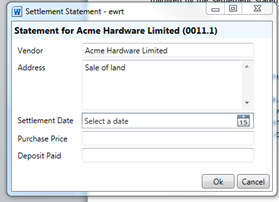
Select the Settlement Statement from the template list. Fill in the OneDesktop dialog box. This is followed by the Settlement Statement dialog box
1. The vendor is your client (based on the client number you choose in the OD box). You can change this.
2. The address is the matter description for the matter you have selected. You can change this wording
3. Select a settlement date, add the purchase price and deposit, then click ‘OK’
4. In the next box that appears, add the purchaser’s name
The calculator
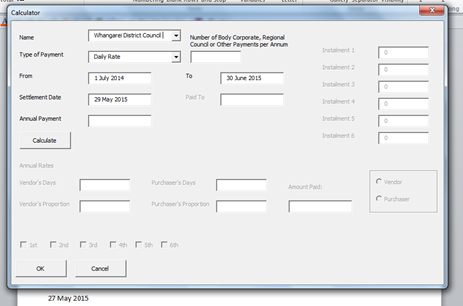
To use the calculator for rates and other apportionments, click ‘Calculator’ on the ribbon. All district councils are loaded into the calculator along with their rating instalment start and end dates. There are several different formulas that can be used and you can use the calculator as many times as you need in a Settlement Statement.
By instalment
1. Change ‘Type of Payment’ to ‘By Instalment’
2. Select the council, if different from the default
3. Enter all the instalment payments in each Instalment box at the right. This information can be obtained from the rating council. Leave zeros in the other boxes
4. Everything else will be calculated or pulled in from your Settlement Statement
5. Click ‘Calculate’ The rest of the dialog boxes will be populated
6. Select ‘Purchaser’ or ‘Vendor’
7. If different than calculated, select the number of instalments that have been paid by clicking on the number next to the tick box, for example: Click on the 3rd to change the amount paid to only include 3 instalments
8. Click ‘OK’
9. The document is populated
Daily rate
This calculates a daily rate by dividing the annual rate amount by 365 (or 366 in a leap year), resulting in the exact amount owed to the council
1. Change ‘Type of Payment’ to ‘Daily Rate’
2. Select the council if different from the default
3. Enter the annual payment
4. Click ‘Calculate’
5. Select ‘Vendor’ or ‘Purchaser’
Rent
1. Change ‘Type of Payment’ to ‘Rent’
2. Click ‘Calculate’
3. A dialog box appears. Select the rent frequency, enter the amount of last payment and date of last payment
4. Click ‘Enter’ The calculator is populated
5. The Purchaser’s share is the only option
6. Click ‘Enter’ and the document is populated
Body corporate, regional council and other payments
1. Change Type of Payment to ‘Body Corporate,’ ‘Regional Council’ or ‘Other’
2. Select the council if in the list or type in the name of the body collecting the rates
3. Enter the number of instalments
4. Enter all the instalment payments in each Instalment box at the right. Leave zeros in the other boxes
5. Everything else will be calculated or pulled in from your Settlement Statement
6. Click ‘Calculate’ The rest of the dialog boxes will be populated
7. Select ‘Purchaser’ or ‘Vendor’
8. If different than calculated, select the number of instalments that have been paid by clicking on the number next to the tick box ie: click on the 3rd to change the amount paid to only include 3 instalments
9. Click ‘OK’
10. The document is populated
Add a debit or credit row
Use the buttons on your ribbon to add debit and credit rows
1. Place your cursor where you want the row to be entered
2. Click ‘Credit’ or ‘Debit’ on the ribbon
3. Add your description and tab to the correct column and add your $ amount
4. Click the Recalculate button on the ribbon (very important)
To delete a row, high light the row and click delete
Recalculate
Use the ‘Recalculate’ button to recalculate your Settlement Statement if you have made any changes