
Fill in all relevant information for all users in your organisation.
Users
1. From the Administration ribbon, click ‘users’
2. Select each user and fill in all the relevant information. Job title, addresses, phone numbers, office, email address, etc that will be used in the templates. It is important that you accurately enter this information as you would like it to appear in documents
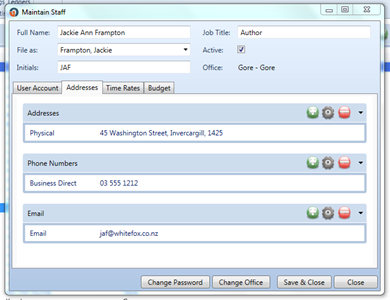
3. When adding an email or phone number, select the “Main” tick box
Offices
1. Select the Administration ribbon and click ‘Offices’
2. Fill in all relevant information
Parties
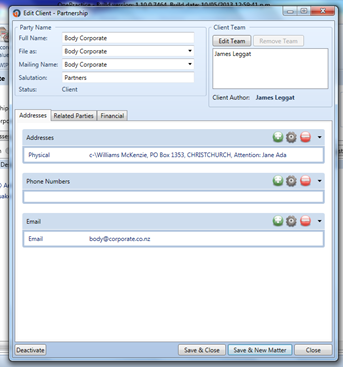
1. Fill in all information pertaining to contact/address details, related parties, financial information (GST number) and any other relevant information
Contacts
Adding non-client contacts to your OnePractice database allows users to populate their documents with names and address details of clients and non-clients. This allows faster, more accurate document creation.
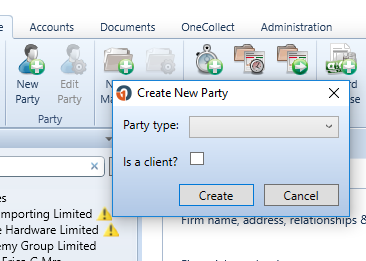
1. Add a non-client contact by selecting ‘New Party’ in the home ribbon and unticking ‘Is a client?’
2. Non-client contacts can include:
- Banks
- Councils
- Legal firms
- Real estate companies
- Courts
- Trustees, Power of Attorney, etc.